
Official manufacturer overview
Dell UltraSharp WB7022 unboxing and setup
Dell Support · Dell Support demonstrates UltraSharp WB7022 unboxing, mounting and setup. Regional package details and software screens may vary. Monitor, tripod and microphone are not included. Check the current Dell software requirements for your operating system.
Play to load this video from YouTube.
Dell UltraSharp • WB7022
A clearer presence. A carefully framed view.
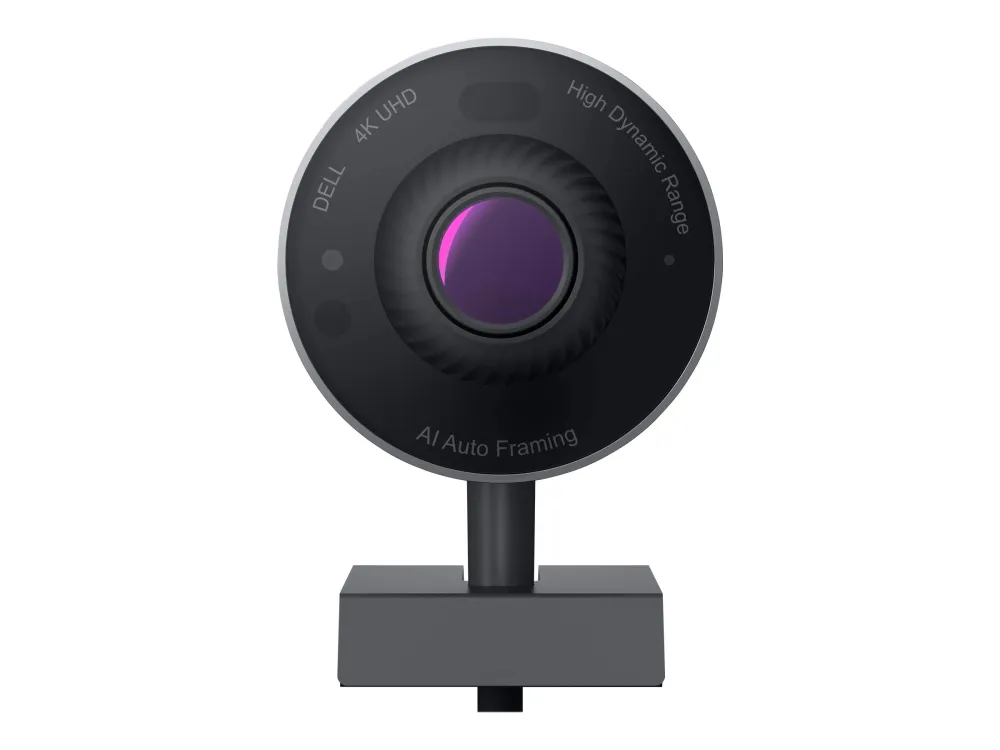
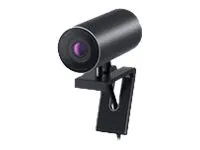
The Dell UltraSharp WB7022 brings a large Sony STARVIS CMOS sensor, autofocus and selectable framing to your desk. Choose detailed 4K video at up to 30 fps or Full HD at up to 60 fps, then pair the camera with your preferred headset or microphone: there is no built-in microphone.

Image and framing
Choose what the conversation sees.
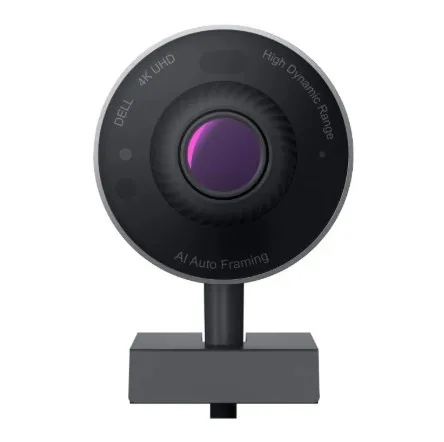
Select a 65°, 78° or 90° field of view, with autofocus and up to 5× digital zoom for flexible composition. The 8.3-megapixel Sony STARVIS CMOS sensor and f/2.7 lens capture the scene; single-person AI auto-framing helps keep you centred when you are within two metres of the camera. Auto-framing works at 24 or 30 fps and stops at 60 fps; software configuration also matters.

A tidy physical setup
A small camera with practical mounting choices.
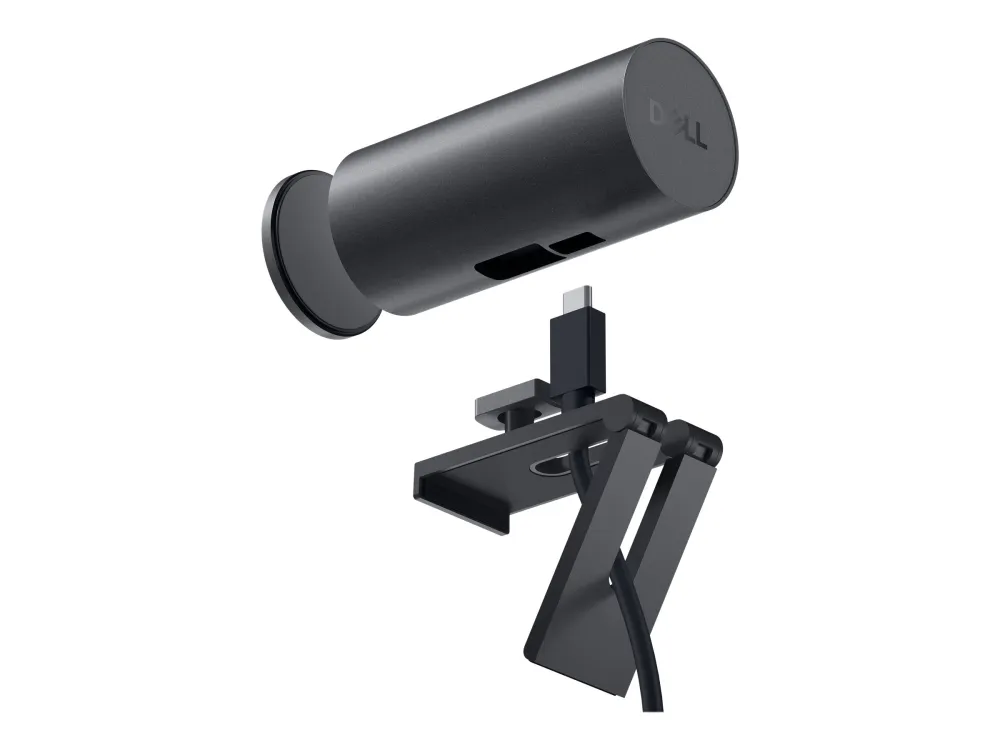
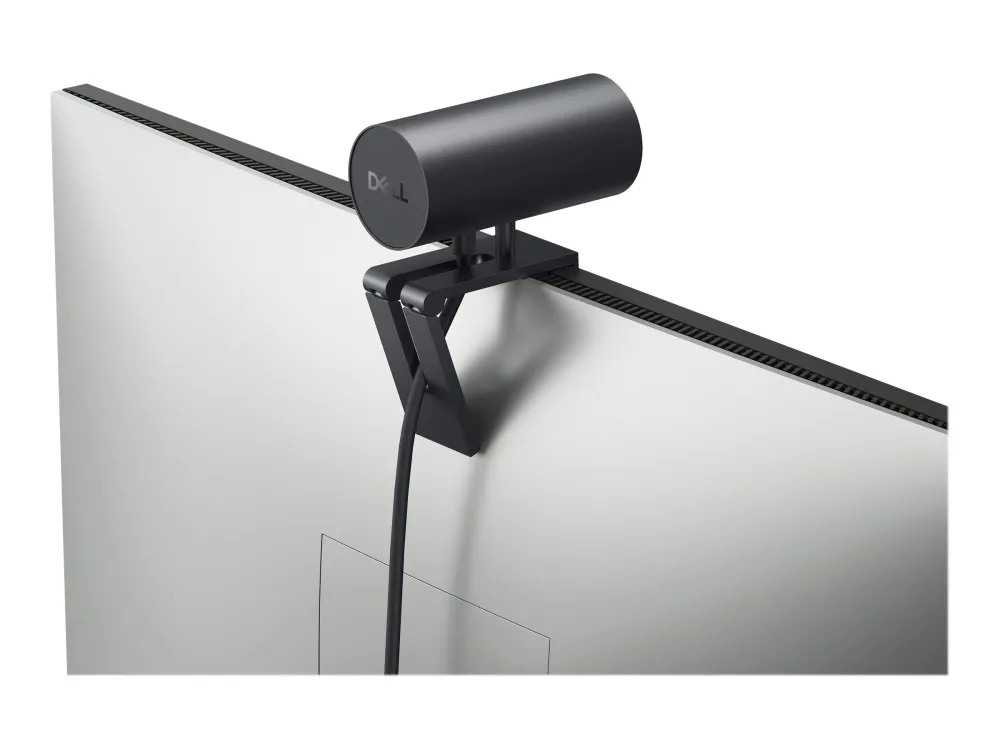
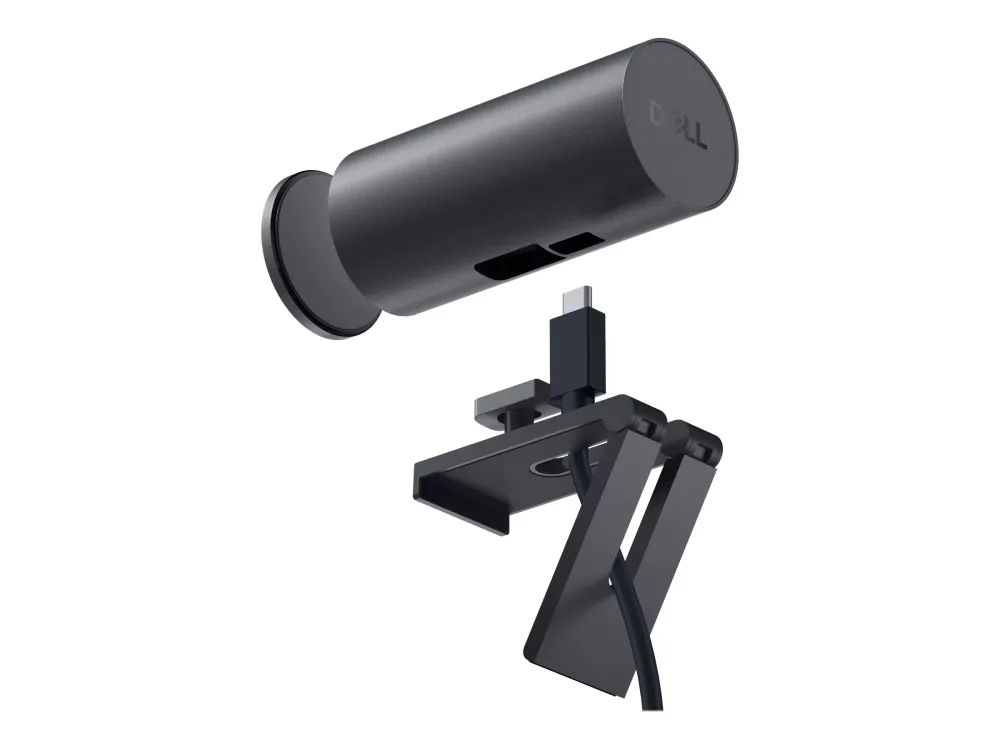
The anodised aluminium body measures 42 mm in diameter and 90 mm long. A monitor mount and tripod adapter are included, while a tripod is sold separately. The detachable two-metre USB-C to USB-A cable connects the camera to the host. The monitor shown in the installation image illustrates placement and is not included.

Connection that matters
Give 4K the bandwidth it needs.
Connect the supplied cable to a USB 3.0 Type-A host port for 4K. A USB 2.0 connection cannot provide the same 4K mode and may affect image quality or authentication. Application settings, lighting and the receiving service also affect the delivered picture. Use Full HD or HD for up to 60 fps; this camera does not provide 4K at 60 fps.
Light and detail
Adapt the picture to the room.
Digital Overlap HDR, automatic white balance, face-detection auto exposure and temporal/spatial video noise reduction help manage the picture. HDR is suited to high-contrast lighting; Dell recommends switching HDR off for low-light conditions. Use the supported Dell software to tailor lighting, colour and framing controls to your workspace.
Privacy and sign-in
Cover the lens. Keep sign-in personal.
A magnetic privacy cap physically covers the lens and can be stored at the rear while the camera is in use. Windows Hello facial recognition is supported on a properly configured Windows system. Dell ExpressSign-in presence features depend on compatible Dell hardware, Windows and software settings; availability is not the same across every computer.
Your meeting setup
Build the audio and software combination you prefer.
Use a separate microphone, headset or speakerphone for sound. Dell lists Microsoft Teams and Zoom certification and compatibility with services including Google Meet, Cisco Webex, Slack and Skype for Business. Supported features vary with the operating system, Dell utility and calling application; check the manufacturer support information for the combination you intend to use.


Reviews
There are no reviews yet.