
Dell P5525QC User’s Guide (PDF)
Dell’s setup, connectivity, VESA mounting and troubleshooting guide for the P5525QC.
Open official support (opens in a new tab)Checking which support options are available…
Who would you like help from?
Enter your name to begin your live chat with an online consultant.
What can we help you with?
Your details are used only to respond. MatzoBot requests are securely passed to the MatzoTech team.
Your request has been emailed to MatzoTech. A consultant will reply using the email address or mobile number you supplied.

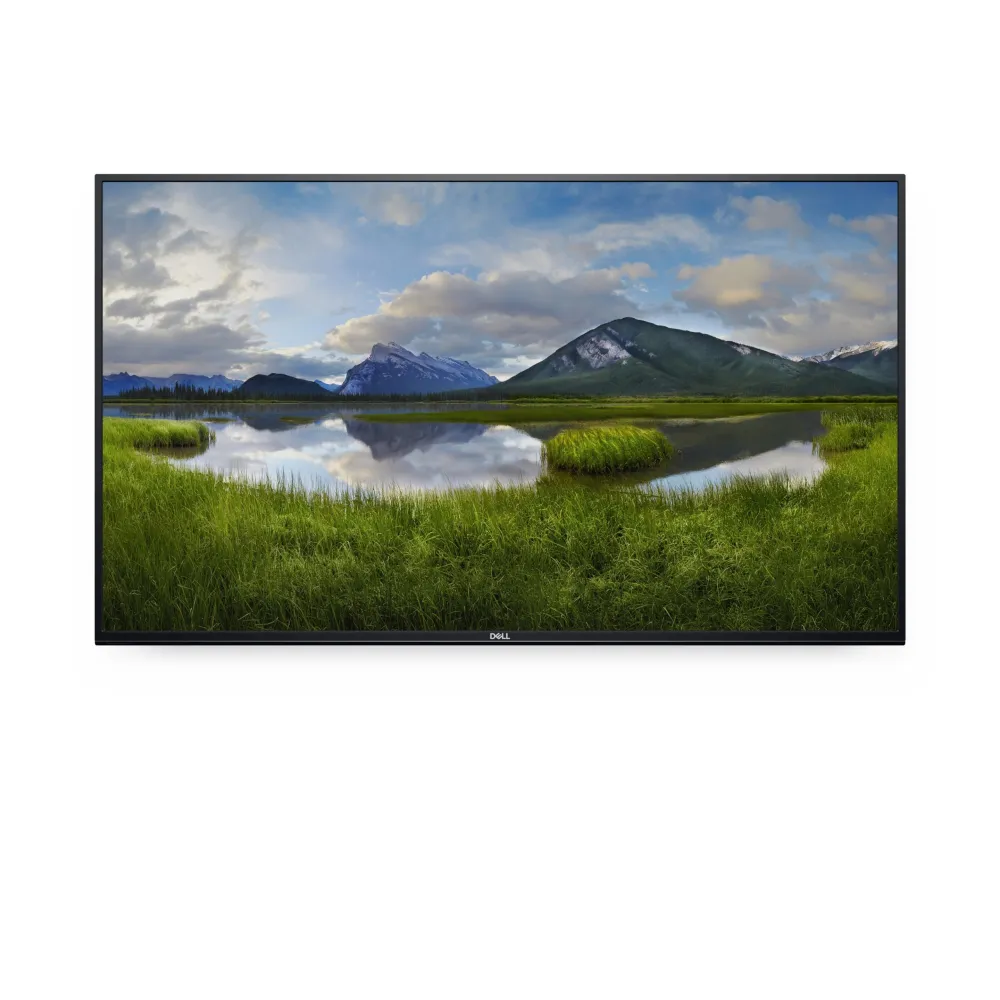
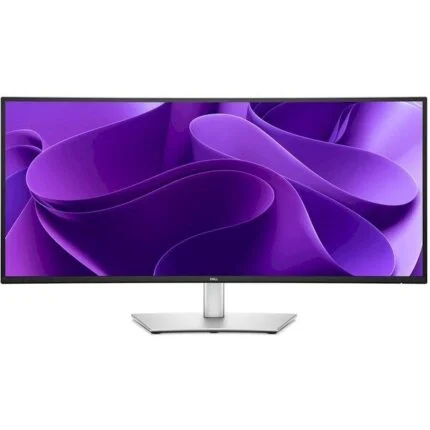
Dell P5525QC 55-inch class conference display with 4K IPS, USB-C power delivery up to 90 W, DisplayPort MST, dual HDMI and built-in speakers.
R29,719.00
Supplier has stock — 3 avail
Clear fulfilment, warranty and payment details.
Official manufacturer overview
Dell Support · Dell’s setup guide for the P5525QC. The illustrated OptiPlex computer and room mounting equipment are separate purchases. Check the local carton for supplied accessories.
Play to load this video from YouTube.
Dell P5525QC · 55-inch class
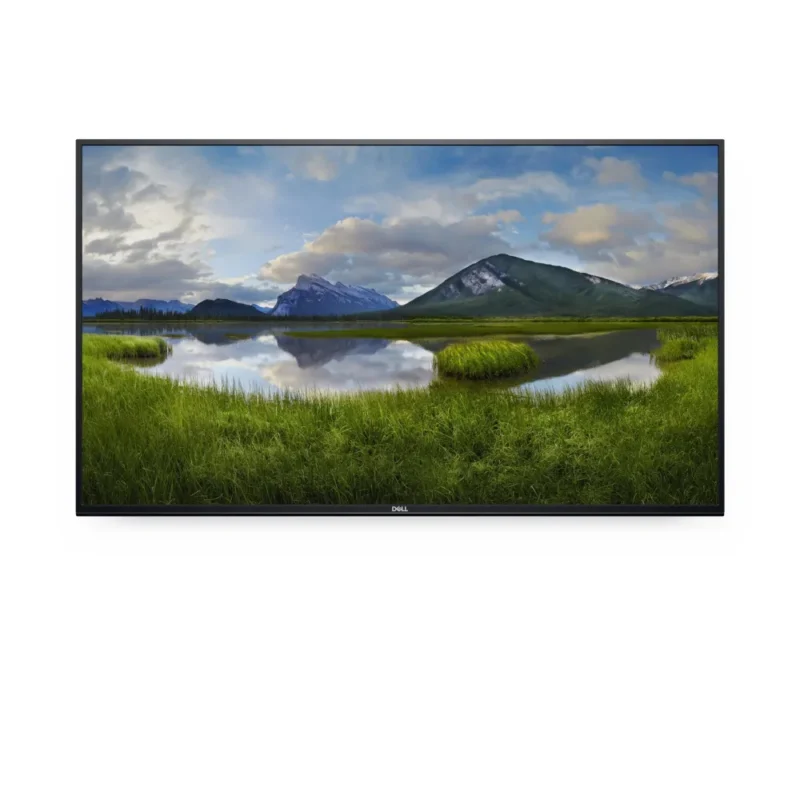
The Dell P5525QC gives shared documents, presentations and remote participants a 54.6-inch IPS screen. Connect a compatible laptop by USB-C to send the picture and keep it charged with up to 90 W from the display.
Shared viewing
The 3840 × 2160 panel makes room for a detailed presentation or a large worksheet. Its anti-glare surface and wide IPS viewing angles help people follow from different seats.
Connections
Use USB-C with DisplayPort Alternate Mode on a compatible laptop, or connect a room computer to either of the two HDMI 2.0 ports or the DisplayPort 1.4 input. The DisplayPort output supports MST. Dell specifies dual 4K at 60 Hz over DisplayPort when the source and setup support Display Stream Compression.
Room controls
The display has two built-in 10 W speakers, a 3.5 mm line output, RJ45 for remote management and an RS-232 port for room controls. Its OptiPlex holder accommodates a compatible separately purchased Dell micro PC. A camera and meeting computer are separate purchases.
Placement
The 400 × 300 mm VESA mounting pattern lets you choose a compatible wall mount or cart rated for the display. Use Dell’s setup guide to plan the bracket, reach the ports and route the cables before mounting.
| Model | Dell P5525QC |
|---|---|
| Dell order part | 210-BNTN |
| EAN (catalogue) | 5397184821770 |
| Viewable size | 54.6 inches, 55-inch class |
|---|---|
| Panel | IPS with anti-glare surface |
| Native mode | 3840 × 2160 at 60 Hz |
| Brightness | 400 cd/m² (typical) |
| Contrast | 1,200:1 (typical) |
| Colour gamut | 72% NTSC (typical) |
| Viewing angles | 178° horizontal and vertical |
| Audio | 2 × 10 W speakers and 3.5 mm analogue line output |
| Touch / camera | No touch input or integrated camera |
| HDMI | 2 × HDMI 2.0 |
|---|---|
| DisplayPort in | 1 × DisplayPort 1.4. Dual 4K at 60 Hz requires DSC and a compatible source and chain. |
| DisplayPort out | 1 × DisplayPort with MST support |
| USB-C upstream | 1 × USB-C with DisplayPort 1.4 Alternate Mode and up to 90 W Power Delivery |
| USB-C downstream | 1 × USB 3.2 Gen 1 (5 Gb/s), up to 15 W |
| USB-A downstream | 2 × USB 3.2 Gen 1 (5 Gb/s) |
| USB-B upstream | 1 × USB 3.2 Gen 1 (5 Gb/s) |
| Room management | RJ45 and RS-232 |
| VESA pattern | 400 × 300 mm |
|---|---|
| Display size (W × H × D) | 1247.43 × 727.83 × 79.80 mm |
| Display weight | Approximately 22.4 kg |
| AC input | 100–240 V AC, 50/60 Hz |
| Power use | 77.1 W in the Dell operating-power specification, up to 300 W maximum |
| Accessories | Remote, OptiPlex holder and setup documents. Check the local carton for supplied cables and accessories. |
|---|---|
| Cable list | DisplayPort (3 m), HDMI (3 m), USB-C to USB-C (1.8 m), USB-A to USB-B (1.8 m), display power and OptiPlex power cables in Dell documentation. |
| Mount and room computer | Select a compatible mount and computer separately. |
Use official support resources for this product. Each link opens in a new tab.
Dell’s setup, connectivity, VESA mounting and troubleshooting guide for the P5525QC.
Open official support (opens in a new tab)Help other shoppers by sharing an honest review.
Write a reviewYou are offline. Reconnect to check prices and shop.
Reviews
There are no reviews yet.