
Screen sharing
Bring a compatible source to the TV
Use the display mode that matches your phone or computer. The EZCast instructions cover EZMirror for compatible Miracast devices and AirPlay mirroring for supported Apple devices.
Checking which support options are available…
Who would you like help from?
Enter your name to begin your live chat with an online consultant.
What can we help you with?
Your details are used only to respond. MatzoBot requests are securely passed to the MatzoTech team.
Your request has been emailed to MatzoTech. A consultant will reply using the email address or mobile number you supplied.

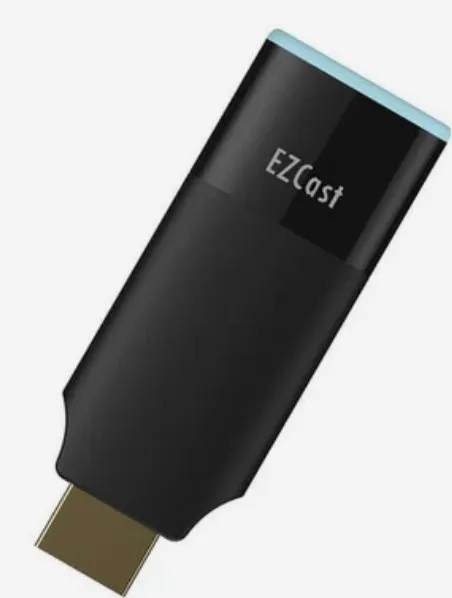
EZCast 2 Full HD HDMI wireless display dongle with dual-band Wi-Fi, Miracast support and micro-USB power.
R1,469.00
Supplier has stock — 1 avail
Clear fulfilment, warranty and payment details.
Official manufacturer overview
EZCast · EZCast demonstrates this model’s setup and mirroring on compatible devices. App screens and platform requirements may change.
Play to load this video from YouTube.
EZCast Classic | EZCast 2
EZCast 2 plugs into an HDMI input and receives a compatible wireless display from a phone or computer. Use it for mirroring a presentation or sharing photos on a larger screen, with Full HD output and Wi-Fi on either 2.4 or 5 GHz.
Screen sharing
Use the display mode that matches your phone or computer. The EZCast instructions cover EZMirror for compatible Miracast devices and AirPlay mirroring for supported Apple devices.
Placement
Plug the dongle into HDMI and connect its micro-USB power cable to a 5 V, 1 A supply. Choose that HDMI input on the television and follow the setup screen. Place the Wi-Fi receiver where it has a clear path to the source.
App and control
EZCast publishes screen-sharing and app instructions for this model, including optional voice-control setup for compatible smart-speaker configurations. Use the current app listing for your platform’s requirements.
App and operating-system requirements can change. Check the EZCast 2 support page before buying for an older device.
| Model | EZCast 2, Classic series |
|---|---|
| Maximum output | 1080p |
| Video connection | HDMI |
| Power connection | Micro-USB, 5 V / 1 A |
| Wi-Fi | 2.4 and 5 GHz |
| Dongle weight | 20 g |
| Processor | Proprietary EZCast system-on-chip |
| Screen mirroring | EZMirror (Miracast), AirPlay on compatible devices and EZCast app options |
|---|---|
| App platforms | EZCast lists iOS, Android, Windows and macOS options for this model; check your version on the manufacturer page |
App and operating-system requirements can change. Check the EZCast 2 support page before buying for an older device.
Use official support resources for this product. Each link opens in a new tab.
Choose the application for your device and check its current operating-system requirements. Use the EZCast 2 menu for its manual and firmware guidance.
Open official support (opens in a new tab)Help other shoppers by sharing an honest review.
Write a reviewYou are offline. Reconnect to check prices and shop.
Reviews
There are no reviews yet.