

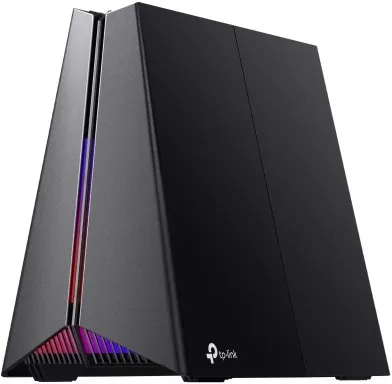
TP LINK BE9300 TRI-BAND WIFI 7 GAME ROUT
TP-Link Archer GE550 BE9300 tri-band Wi-Fi 7 gaming router with 5 Gbps WAN and LAN, three 2.5 Gbps LAN ports and a dedicated 5 GHz gaming network.
R5,989.00
Supplier has stock — 1 avail
Key product details
Full specifications below- Mpn: ARCHER GE550
Delivery & support
Clear fulfilment, warranty and payment details.
- Availability Supplier has stock — 1 avail Supplier has stock — 1 avail
- Delivery Nationwide courier delivery or collection from Strand, Cape Town. Courier nationwide or Strand collection
- Dispatch Backorder — usually dispatched in 2–3 working days after payment verification, subject to supplier confirmation. Backorder — usually dispatched in 2–3 working days after payment verification, subject to supplier confirmation.
- Warranty Manufacturer warranty applies where stated on the product page. As stated on this page
- Returns See our Returns Policy for eligible change-of-mind and faulty goods procedures. See Returns Policy
- Secure payment PayFast checkout with card, Instant EFT, and Mobicred. PayFast · card · EFT · Mobicred
Official manufacturer overview
Set up the Archer GE550 with TP-Link Tether
TP-Link Global Support · This TP-Link GE550 and GE650 family setup guide demonstrates the Archer GE550. Ports and screens can vary with hardware version.
Play to load this video from YouTube.
Archer GE550 | Tri-band Wi-Fi 7
Give your game a dedicated connection
Run a compatible gaming PC on the 5 Gbps LAN port or put compatible wireless gaming gear on the dedicated 5 GHz gaming network. The GE550 also gives other devices access to 2.4 GHz and 6 GHz, with game traffic controls managed from its own dashboard.
Wired play
Keep the high-speed wired path simple
Connect your internet handoff to the 5 Gbps WAN port and your compatible PC or switch to the separate 5 Gbps LAN port. Three 2.5 Gbps LAN ports leave space for other wired gear. The link speed you can use depends on your plan, connected hardware and cabling.
Wireless play
Put the right devices on the right band
Use the dedicated 5 GHz gaming network for compatible gaming gear and keep 6 GHz available to clients that support it. Multi-Link Operation lets compatible devices use more than one link. Access to 6 GHz and 320 MHz channels depends on the client and local rules.
Game Center
See what your network is doing
Use the game panel to view router status, gaming traffic and device priorities. Its controls include priorities by game or device, a gaming port and RGB settings. The separate GPN game-server service depends on availability and its terms.
Placement
Make space for an upright router
The GE550 has four antennas inside its upright housing. Its vented enclosure is designed to leave room for airflow. The USB 3.0 port supports compatible storage for local file and media sharing.
Specifications
Identity
| Brand | TP-Link |
|---|---|
| Model | Archer GE550 |
| Wireless class | BE9300 tri-band Wi-Fi 7 |
| Operating modes | Router or access point |
Wireless
| Bands | 2.4 GHz, 5 GHz and 6 GHz |
|---|---|
| Advertised 6 GHz link rate | Up to 5,764 Mbps (802.11be) |
| Advertised 5 GHz link rate | Up to 2,882 Mbps (802.11be) |
| Advertised 2.4 GHz link rate | V1 up to 574 Mbps (802.11ax). V2 up to 688 Mbps (802.11be). Check the hardware label. |
| Maximum channel width | 320 MHz on 6 GHz with compatible clients and where permitted |
| Wi-Fi features | Multi-Link Operation, 4K-QAM and Multi-RUs with compatible clients |
| Antennas | Four integrated antennas |
| Mesh | EasyMesh compatibility depends on equipment and firmware |
Wired connections and storage
| WAN | 1 × 5 Gbps Ethernet |
|---|---|
| LAN | 1 × 5 Gbps and 3 × 2.5 Gbps Ethernet |
| USB | 1 × USB 3.0 |
| USB filesystems | NTFS, exFAT, HFS+ and FAT32 |
| USB sharing | Samba, FTP and media server |
Traffic and management
| Gaming network | Dedicated 5 GHz gaming network |
|---|---|
| Traffic tools | Game panel, device and application prioritisation, gaming port and gaming traffic reports |
| Management | TP-Link Tether for iOS and Android or web browser |
| IP protocols and WAN types | IPv4 and IPv6. Dynamic IP, static IP, PPPoE, PPTP and L2TP. |
| Wireless security | WPA, WPA2, WPA3 and WPA/WPA2-Enterprise (802.1X) |
| Guest Wi-Fi | One network per band |
| VPN client and server | OpenVPN, WireGuard, PPTP and L2TP as documented by TP-Link |
| Parental controls | HomeShield, with some features subject to a paid plan |
Placement and package
| Dimensions | 237 × 129.5 × 193 mm, per V1 and V2 datasheets |
|---|---|
| Operating temperature | 0 to 40 °C |
| Operating humidity | 10% to 90% relative humidity, non-condensing |
| Controls | Power, reset, WPS/Wi-Fi and LED |
| Documented package contents | Router, power adapter, RJ45 Ethernet cable, quick installation guide and reset tool |
Wi-Fi figures are advertised link rates. Real throughput depends on the network, clients and local conditions. Read the hardware version and region on the device label before selecting any firmware.
Reviews
There are no reviews yet.