

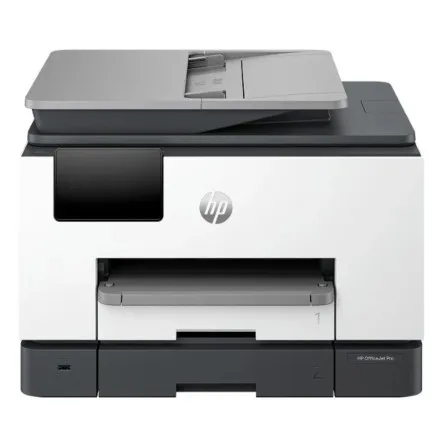
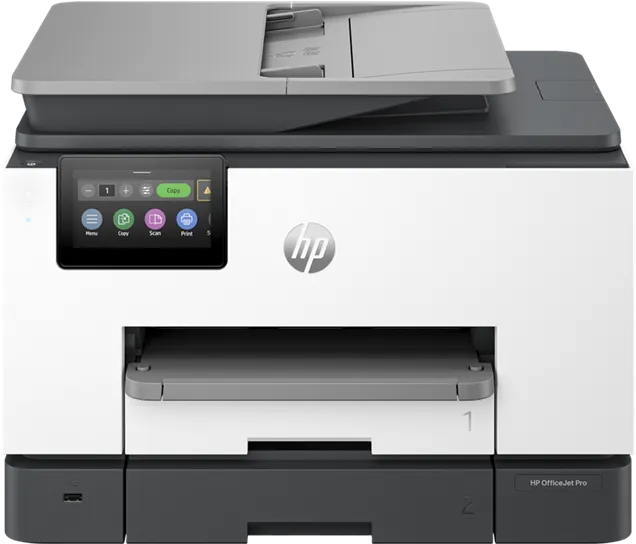
HP OfficeJet Pro 9130 All-in-One Printer
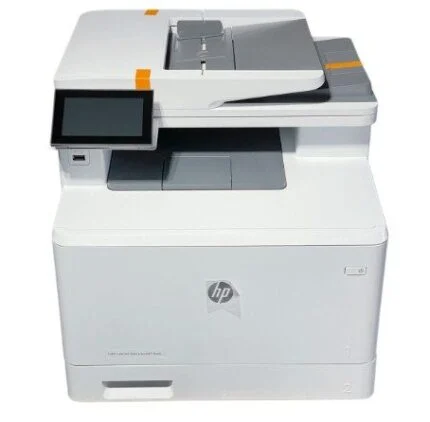
HP OfficeJet Pro 9130 404K9C colour inkjet printer with print, copy, scan and fax, two 250-sheet trays, automatic duplex printing and a 35-sheet single-pass duplex feeder.
R8,719.00
Supplier has stock — 2 avail
Key product details
Full specifications below- Mpn: 378d25195908303060
- Brand: Hp
Delivery & support
Clear fulfilment, warranty and payment details.
- Availability Supplier has stock — 2 avail Supplier has stock — 2 avail
- Delivery Nationwide courier delivery or collection from Strand, Cape Town. Courier nationwide or Strand collection
- Dispatch Backorder — usually dispatched in 2–3 working days after payment verification, subject to supplier confirmation. Backorder — usually dispatched in 2–3 working days after payment verification, subject to supplier confirmation.
- Warranty Manufacturer warranty applies where stated on the product page. As stated on this page
- Returns See our Returns Policy for eligible change-of-mind and faulty goods procedures. See Returns Policy
- Secure payment PayFast checkout with card, Instant EFT, and Mobicred. PayFast · card · EFT · Mobicred
Official manufacturer overview
HP OfficeJet Pro 9110, 9120 and 9130 series setup
HP Support · HP setup guide for the 9110, 9120 and 9130 family. The example may show another model or regional package.
Play to load this video from YouTube.
HP OfficeJet Pro · 404K9C
Two paper trays. Both sides scanned in one pass.
The HP OfficeJet Pro 9130 prints, copies, scans and faxes from one desktop unit. Two 250-sheet trays give shared workspaces room for up to 500 sheets. The 35-sheet feeder captures both sides of an original in one pass, making it easier to archive signed forms and other double-sided paperwork.
Paper handling
Keep a second supply of plain paper loaded
Use the first tray for everyday paper, envelopes or compatible inkjet media. The second tray takes plain paper. Automatic two-sided printing is useful for reports and handouts, and the output tray holds up to 100 sheets.
Document capture
Scan the whole document, front and back
Feed a stack of loose sheets through the single-pass duplex feeder. Use the flatbed for individual originals. HP lists destinations including email, a network folder, SharePoint and a USB thumb drive. Configure the relevant destination before scanning.
Shared printing
Connect by network or USB
Connect the printer to a shared network by Ethernet or dual-band Wi-Fi, or use the USB device port for a direct connection. Compatible phones and computers can use HP app, AirPrint, Mopria or Wi-Fi Direct as appropriate. The 4.3-inch colour touchscreen gives users access to the printer controls.
Ink and output
Replace colours individually
The printer uses four separate HP 938 cartridges. HP lists standard and higher-yield 938e EvoMore replacements for this regional model. Replacement cartridge yields vary with page content and use. The included setup cartridges serve initial setup and have no replacement yield stated here.
Specifications
Identity and controls
| Manufacturer model | HP OfficeJet Pro 9130 All-in-One Printer, 404K9C |
|---|---|
| Functions | Print, copy, scan and colour fax |
| Technology and print language | HP Thermal Inkjet, HP PCL3 GUI |
| Display | 4.3-inch colour touchscreen |
| Processor and memory | 1.2 GHz, 512 MB |
Print performance
| A4 print speed (ISO) | Up to 25 ppm black and 20 ppm colour |
|---|---|
| A4 draft speed | Up to 39 ppm black or colour |
| First A4 page from ready | As fast as 10 seconds black or 11 seconds colour |
| Black print resolution | 1200 × 1200 rendered dpi |
| Colour print resolution | Up to 4800 × 1200 optimised dpi on HP Advanced Photo Paper, with 1200 × 1200 dpi input |
| Two-sided printing | Automatic |
| Recommended monthly volume | Up to 2,000 pages |
| Maximum A4 monthly duty cycle | Up to 30,000 pages |
Paper and media
| Paper input | Up to 500 sheets total, 250 sheets in each tray. Tray 2 takes plain paper. |
|---|---|
| Paper output | Up to 100 sheets |
| Selected standard sizes | A4, A5, A6, JIS B5, Hagaki, 10 × 15 cm and 13 × 18 cm photos, plus supported envelopes including C5, C6 and DL |
| Custom sizes (tray 1) | 76.2 × 127 mm to 215.9 × 355.6 mm |
| Tray 1 media | Plain, photo inkjet, matte and glossy inkjet and brochure paper |
| Recommended media weights | Plain 60–105 g/m², photo 220–280 g/m², envelopes 75–90 g/m², cards 163–200 g/m² |
| Borderless printing | Photo paper only, up to A4 or US Letter |
Scanning, copying and fax
| Scanner and feeder | CIS flatbed and 35-sheet single-pass two-sided ADF |
|---|---|
| Optical scan resolution | Up to 1200 dpi |
| Scan area | Flatbed up to 215.9 × 297 mm. ADF supports 127 × 127 mm to 215.9 × 355.6 mm. |
| A4 scan speed at 200 ppi | Up to 18 ipm black or colour single-sided. Up to 21 ipm black and 15 ipm colour duplex. |
| Scan file types | JPEG, BMP, TIFF, PDF, RTF, TXT and PNG |
| Copy speed (ISO) | Up to 23 cpm black and 15 cpm colour |
| Copy settings | Up to 99 copies, 25–400% resize, up to 600 dpi |
| Fax | Colour fax, up to 33.6 kbps. Up to 100 pages in memory using HP’s stated test conditions. |
Connectivity and operating systems
| Wired ports | Ethernet, USB 2.0 device, USB 2.0 host and two RJ-11 fax/phone ports |
|---|---|
| Wi-Fi | Dual-band 2.4 GHz and 5 GHz, 802.11a/b/g/n/ac |
| Mobile printing | HP app, Apple AirPrint, Mopria and Wi-Fi Direct on compatible devices |
| Operating systems listed by HP | Windows 10 and 11, Windows Server 2016/2019/2022 (64-bit), macOS 11–14, Linux and Chrome OS |
| Network security | WPA2 Personal/Enterprise, WPA3, HTTPS and IPP over TLS, as listed by HP |
Ink and supplies
| Setup cartridges | Four HP 938 setup cartridges, one each in black, cyan, magenta and yellow |
|---|---|
| HP 938 replacements | Black 4S6X8PE approx. 1,250 pages. Cyan 4S6X5PE, magenta 4S6X6PE and yellow 4S6X7PE approx. 800 pages each. |
| HP 938e EvoMore replacements | Black 4S6Y2PE approx. 2,500 pages. Cyan 4S6X9PE, magenta 4S6Y0PE and yellow 4S6Y1PE approx. 1,650 pages each. |
| Yield conditions | HP’s approximate replacement yields use continuous printing and vary with page content and other conditions. |
| Cartridge chips | HP Dynamic Security can block cartridges with non-HP chips. Use cartridges with new or reused HP chips. |
Size, power and package
| Dimensions (W × D × H) | 437 × 396.3 × 318.3 mm in storage mode. Depth extends to 547 mm with the output tray extended. |
|---|---|
| Weight | Approximately 11.84 kg |
| Mains input | 100–240 V AC ±10%, 50/60 Hz |
| Power states | 5.58 W ready, 1.22 W sleep and 0.14 W when switched off manually |
| Operating conditions | 5–40 °C, 20–80% relative humidity |
| Package contents | Printer, four HP 938 setup cartridges, power cord, setup poster, reference guide and regulatory and ink notices |
| Standard HP commercial hardware warranty | One year. HP support terms vary by country. |
For regular print volumes, use HP’s recommendation of up to 2,000 pages per month. Allow room in front of the printer for the extended output tray.

Reviews
There are no reviews yet.